Quick answer
Open your room in SenHOME and tell AI which furniture you own, which pieces must stay in position and which can move. Ask for one change tied to a daily need, such as making it easier to reach a wardrobe. After the update, check the pieces you asked to keep and measure the narrowest part of the route before you move furniture in the real room.
1. Make a short list of what stays and what can move
Start with the furniture that shapes the room. Write down the dimensions of pieces you own and check where doors, windows and radiators sit. For a wardrobe, record its width and depth and the space needed to open the doors. If you use a similar model as a stand-in, keep the actual dimensions beside you while you test the arrangement.
Separate what has to stay in place from what can move. For example, leave a fitted wardrobe against its wall, keep the bed you own and allow the bedside table to move. This gives you a clear check after the change.
2. Describe one change in the room you are editing
In the SenHOME app, open your 3D room and describe the change by text or voice. In the Web workspace, use the AI Agent beside the room model. A useful request names the furniture, the part of the layout you can change and the route you want to improve.
For example, you could say “Leave the wardrobe against the left wall. Keep my double bed, but suggest a different position so I can reach the wardrobe easily. Show where the bedside table could go.” Add the bed and wardrobe dimensions you measured if they affect the options.
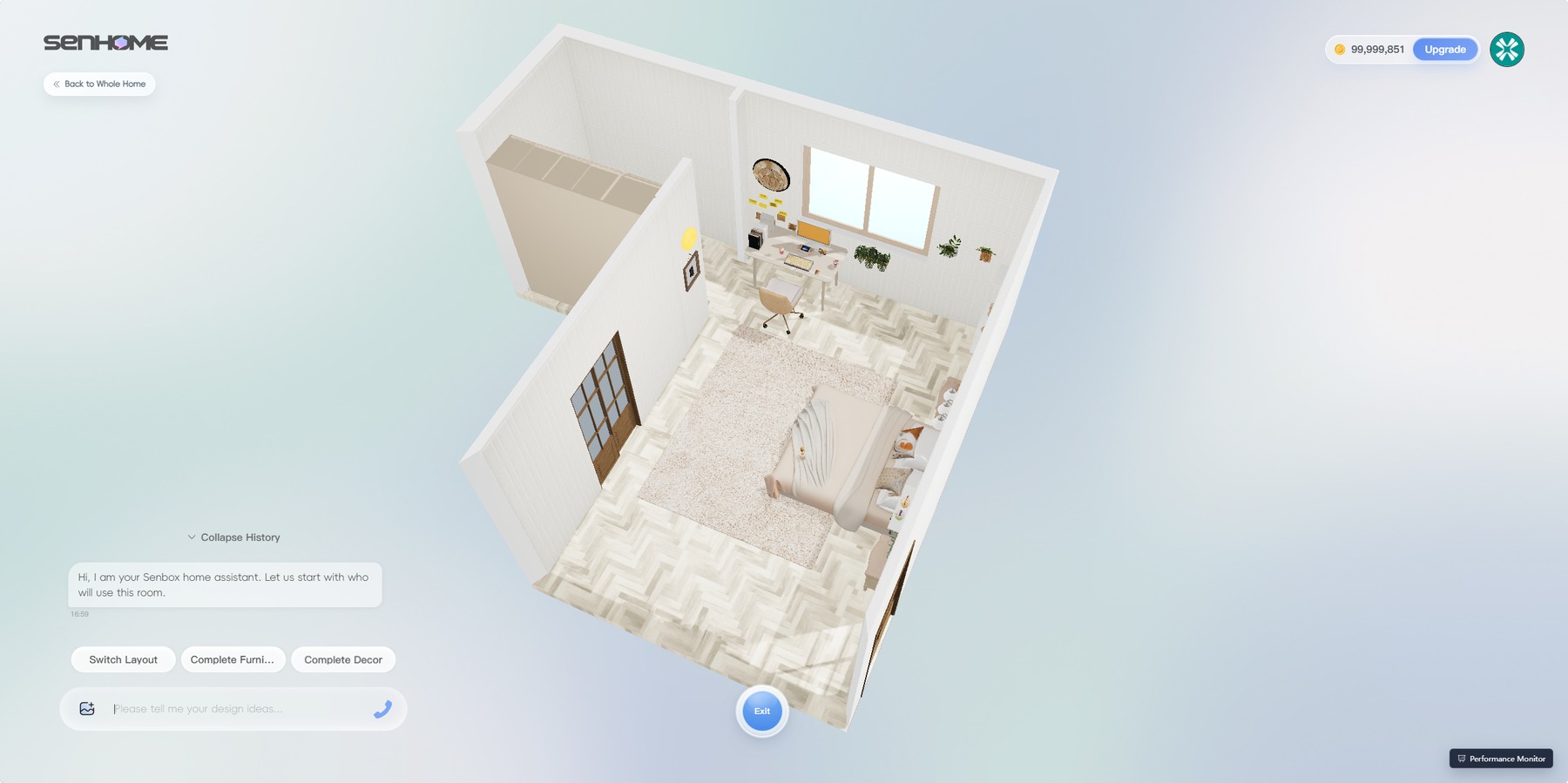
3. Check the update piece by piece
In the App voice demonstration, the first preview shows a light wood wardrobe to the left of the bed. The next bedroom preview still shows that wardrobe on the left. The bed and bedside area look different. Comparing the two views makes it easier to check individual pieces than judging the new room as a whole.
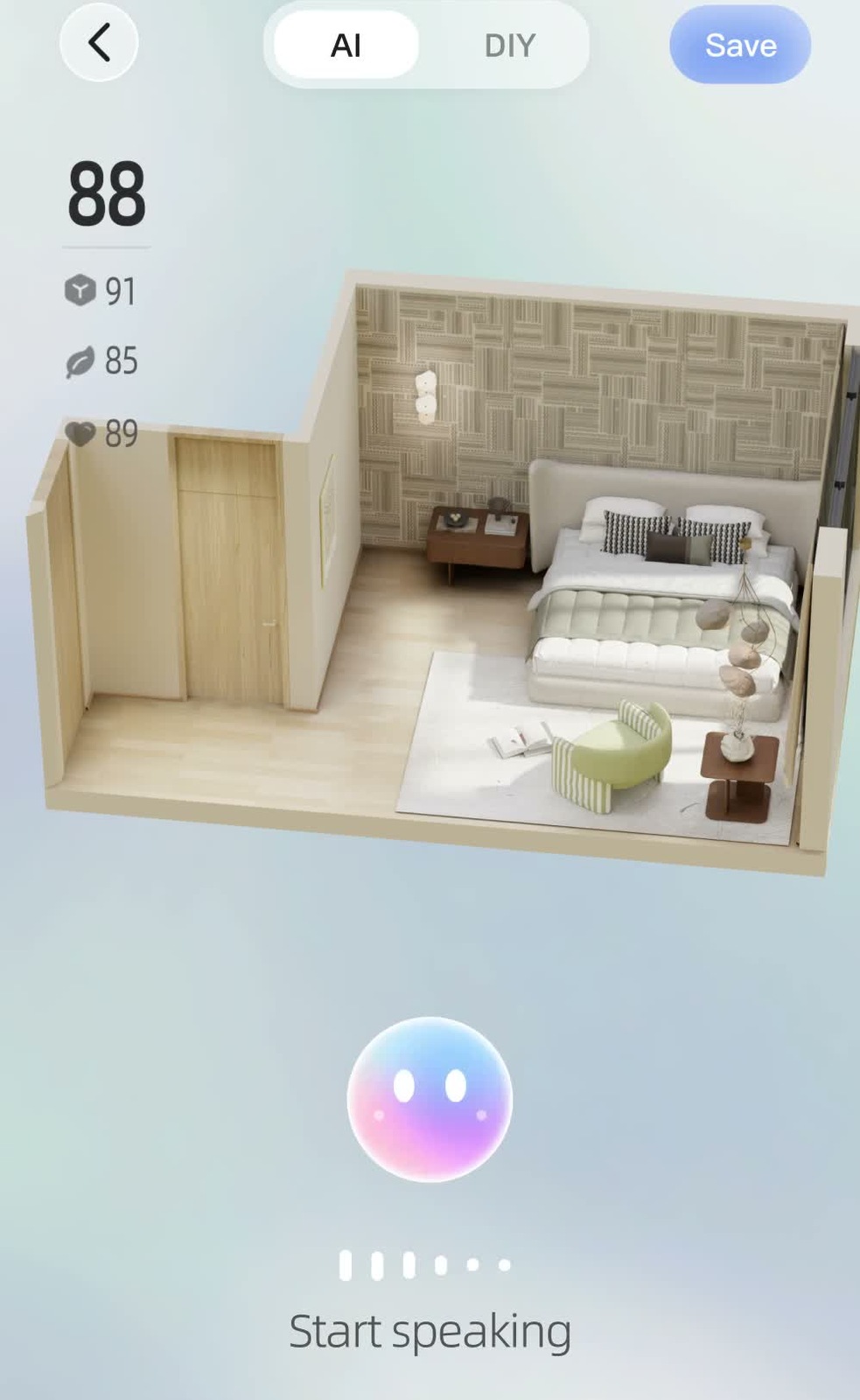
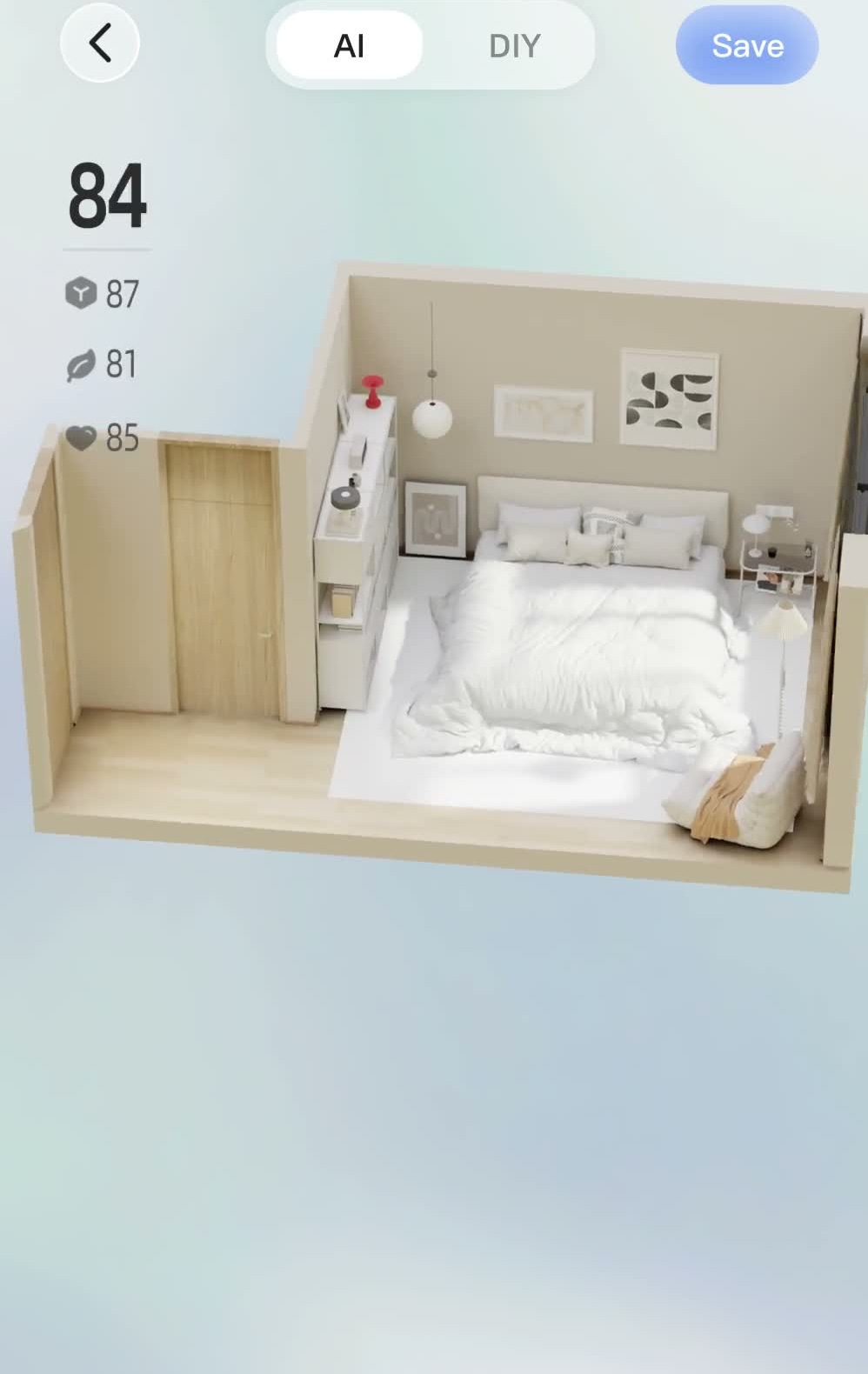
In your own room, check that the retained pieces still match what you own and open or slide as needed. If the proposal changed too much, restate the one constraint it missed. If you know exactly what should move, edit that item directly in the room and check the saved result.
4. Test the everyday route and save the useful version
Look at the layout from above and follow the route from the entry to the places you use. Open the real door, check drawer clearance and measure the narrowest point next to the furniture. A removable tape outline on the floor can help you try the route before lifting anything heavy.
Once the route works and the pieces you want are accounted for, use Save to keep that version. The SenHOME Web guide to editing a room shows where to find the AI Agent and how to make a specific furniture change from the model library.