When comparing interior design materials, it helps to check which texture and settings are being shown before judging the appearance. This SenHOME recording follows the preview sphere inside Upload Material. Maps and values change in the Material Texture tab, and the sphere passes through states with different surface appearances. This case examines that material check; it does not show application to a room.
A sphere with its textures and values in view
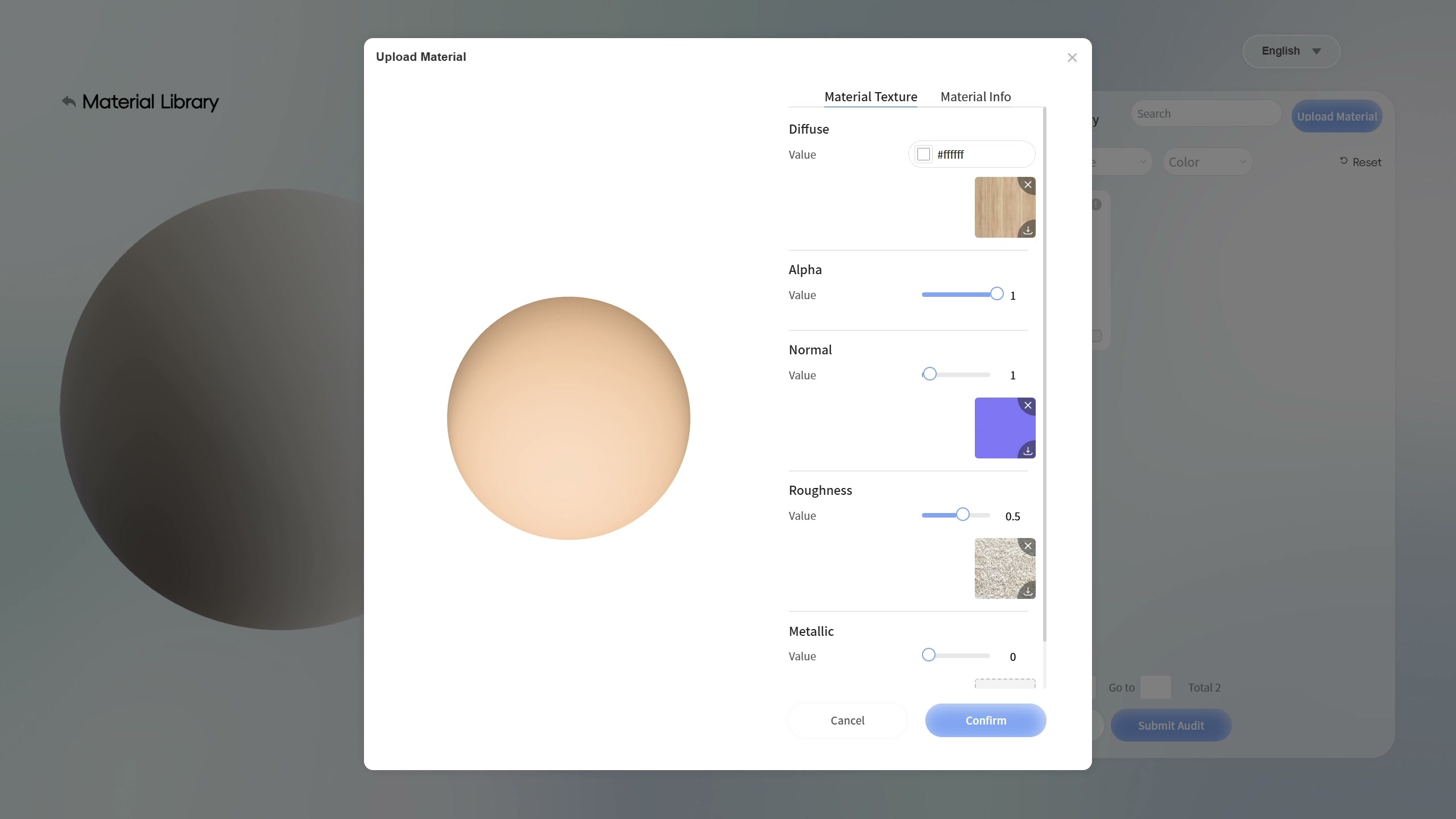
The window places the sphere in the centre and the controls on the right. In the first selected state, Diffuse contains a wood thumbnail. Alpha reads 1, Normal reads 1 and Roughness reads 0.5; Metallic remains at 0. Normal has a purple thumbnail and Roughness a grey grainy image. The central sphere looks predominantly beige and smooth. The product workspace is introduced on the SenHOME Web page.
The maps and the sphere’s appearance change
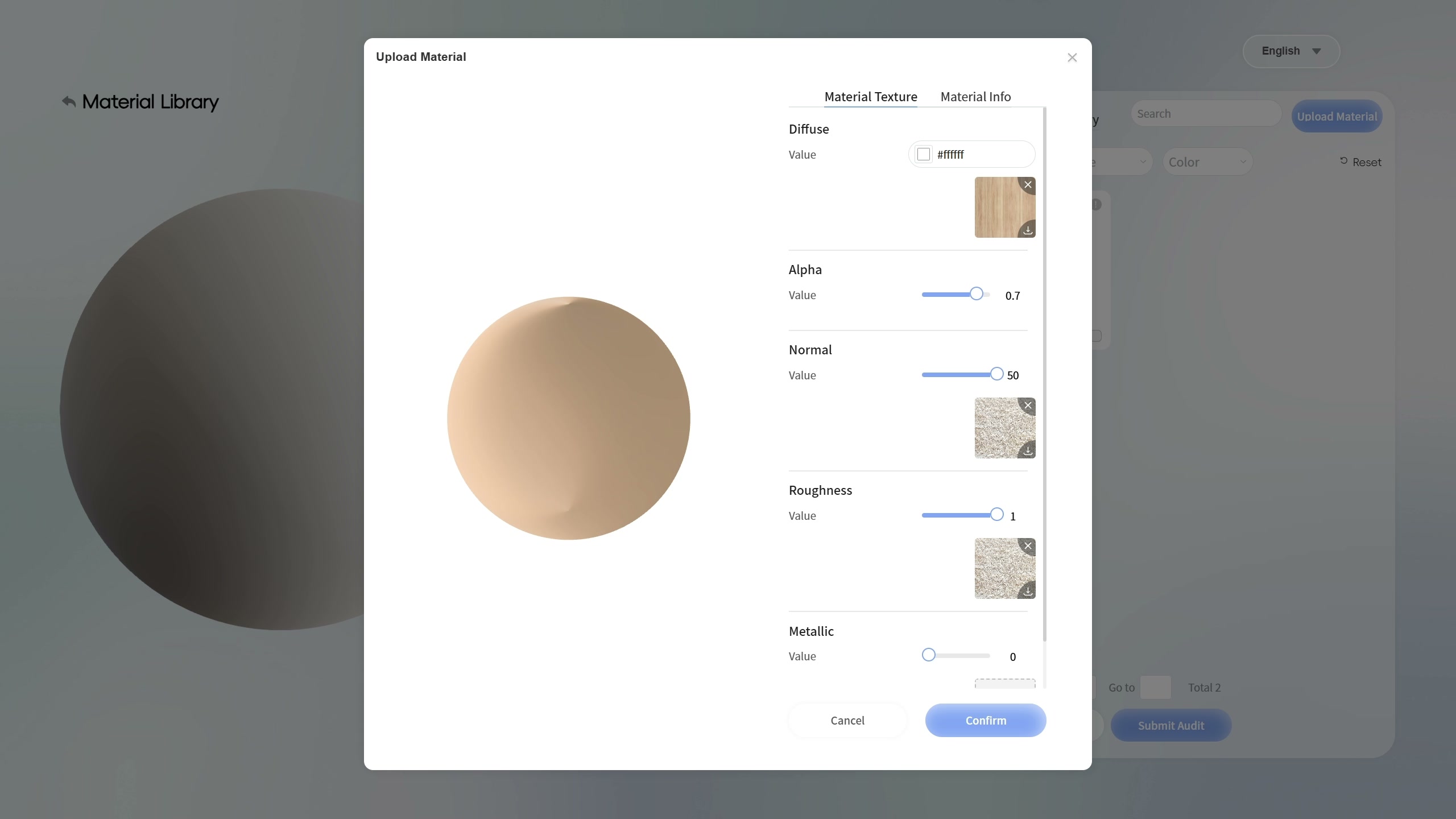
At another point in the sequence, Alpha appears at 0.7, Normal at 50 and Roughness at 1. The Normal thumbnail is now grey and grainy, and the sphere shows light and dark areas that give it a more pronounced relief-like appearance. Read the controls alongside the result for this comparison. Several values and maps change between states, so the whole difference cannot be attributed to a single slider.
Another state leaves a visually smoother surface
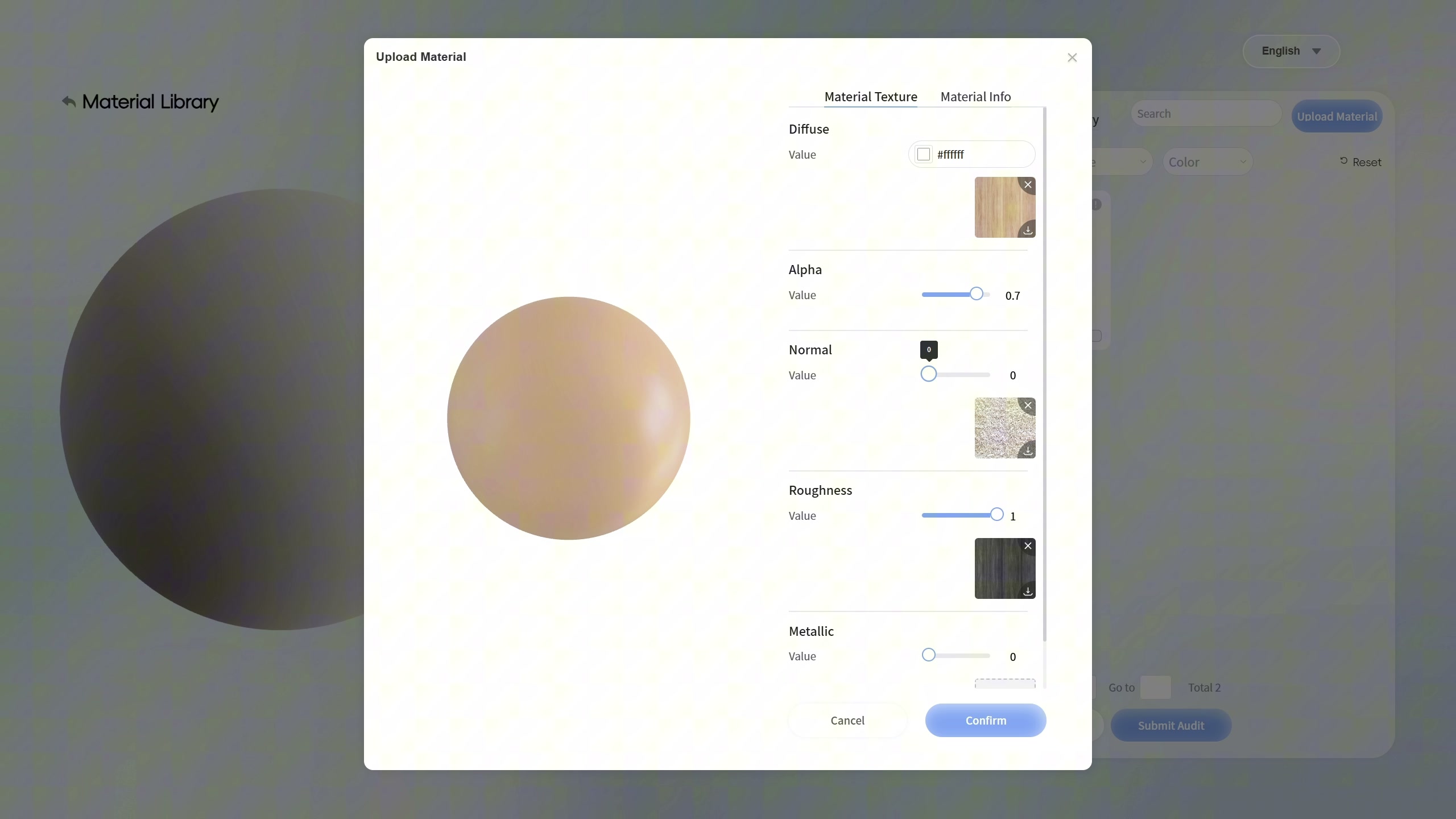
Later, Normal shows 0 and Roughness remains at 1, now with a dark thumbnail in that section. Alpha is still 0.7 and Metallic is 0. The sphere looks smoother than in the previous image. To keep a useful record, retain each screenshot with its thumbnails and values: the appearance alone does not identify every setting used.
What this inspection helps you record
The sequence allows comparison of the digital appearance and a record of what to check in the material files and settings. The last checked frame shows Submitting data; the verified images do not confirm completed saving or approval. Nor do they show this material inside a room. The values are not measurements of a physical sample, and the video moments do not measure upload or rendering times.
The floor-finish comparison case shows a different operation inside a furnished room. When choosing an actual finish, retain checks with physical samples and the supplier’s information.