Quick answer
Start with the room as it is, decide what stays, and use AI to make a first version to react to. Keep the layout and camera angle fixed while you try a different wall finish, rug or sofa. Compare the result next to the starting view. When you have a favorite, check colors in your actual light and measure any furniture you plan to replace.
1. Decide what you want to change
Write down the problem in one sentence. For example, “The wood furniture stays, and I want a calmer backdrop for the bedding and wall art.” Photograph the whole wall or seating area that concerns you, including its floor and nearby openings. List the furniture, finishes or fixtures that stay. If you plan to move furniture, keep the measurements beside the image.
A room image can give you a starting point for a visual trial. If you also need to check fit, use a measured layout and verify where the doors and windows are. See the room-photo options on the SenHOME App page.
2. Make a version you can compare against
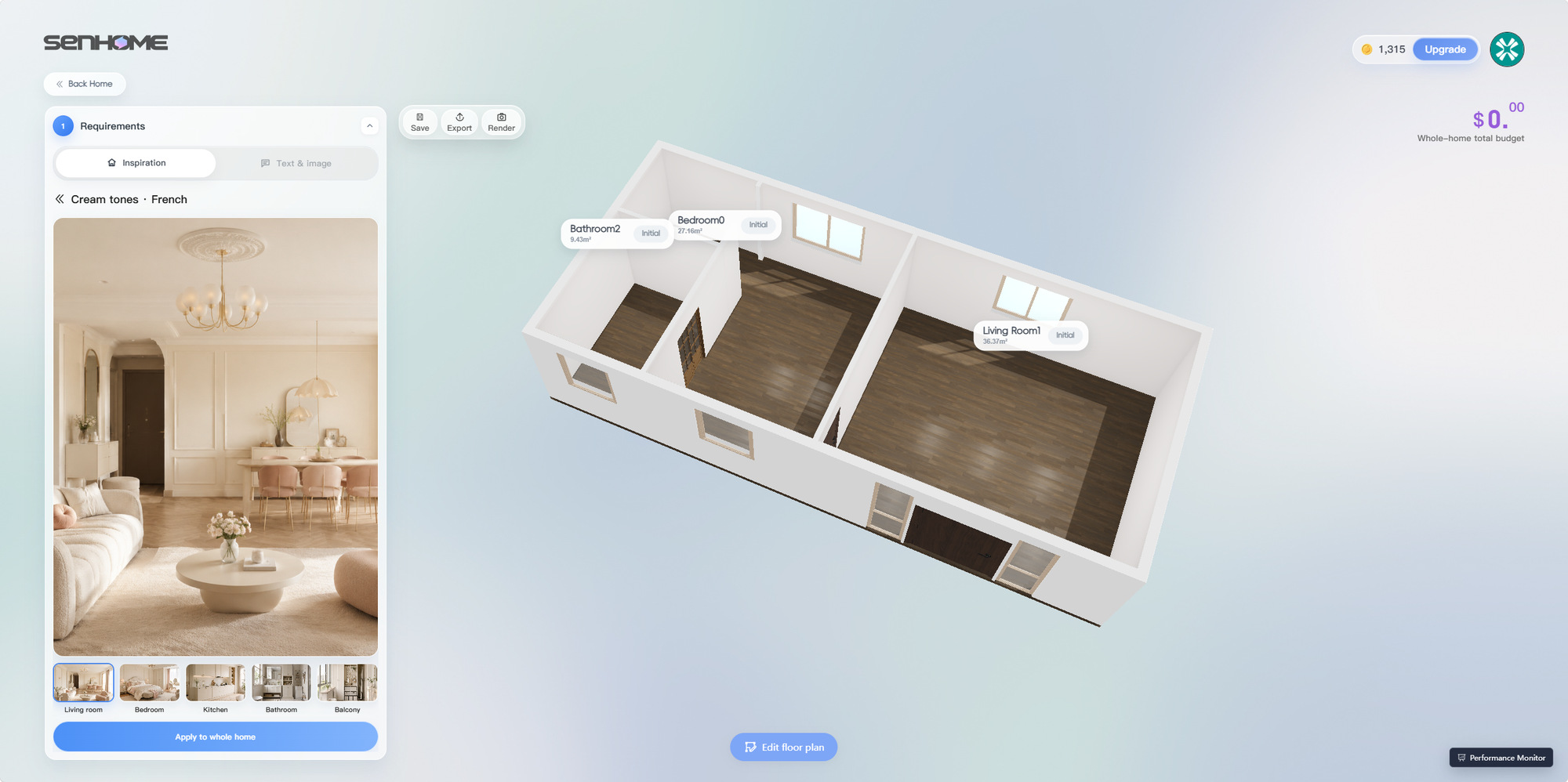
In the web workspace, an Inspiration template gives the first version a direction. The Cream tones French example below shows how to pick a starting palette, with soft colors and curved furniture on its reference card. Choose a template or describe the mood you want, then review the result against your list of pieces to keep. Return any essential pieces to the baseline before comparing changes.
3. Change one finish or fabric at a time
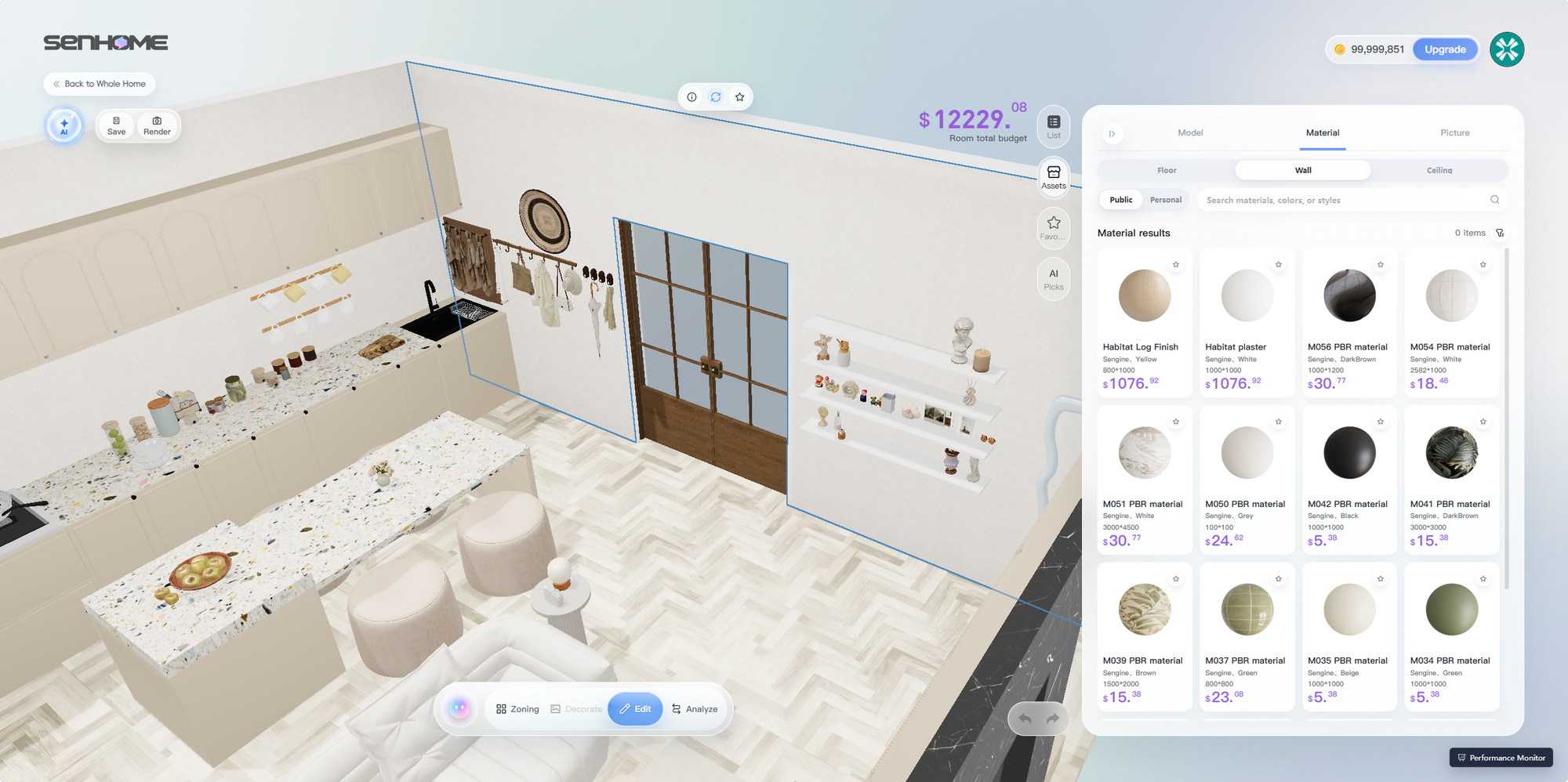
Try the wall finish first if it affects how the bedding, rug or sofa reads. In SenHOME Web, select the surface and browse Material. Keep the furniture, viewpoint and lighting setting fixed while checking the finish against the pieces you plan to keep. The material-library example shows a wall selected with finishes available to browse.
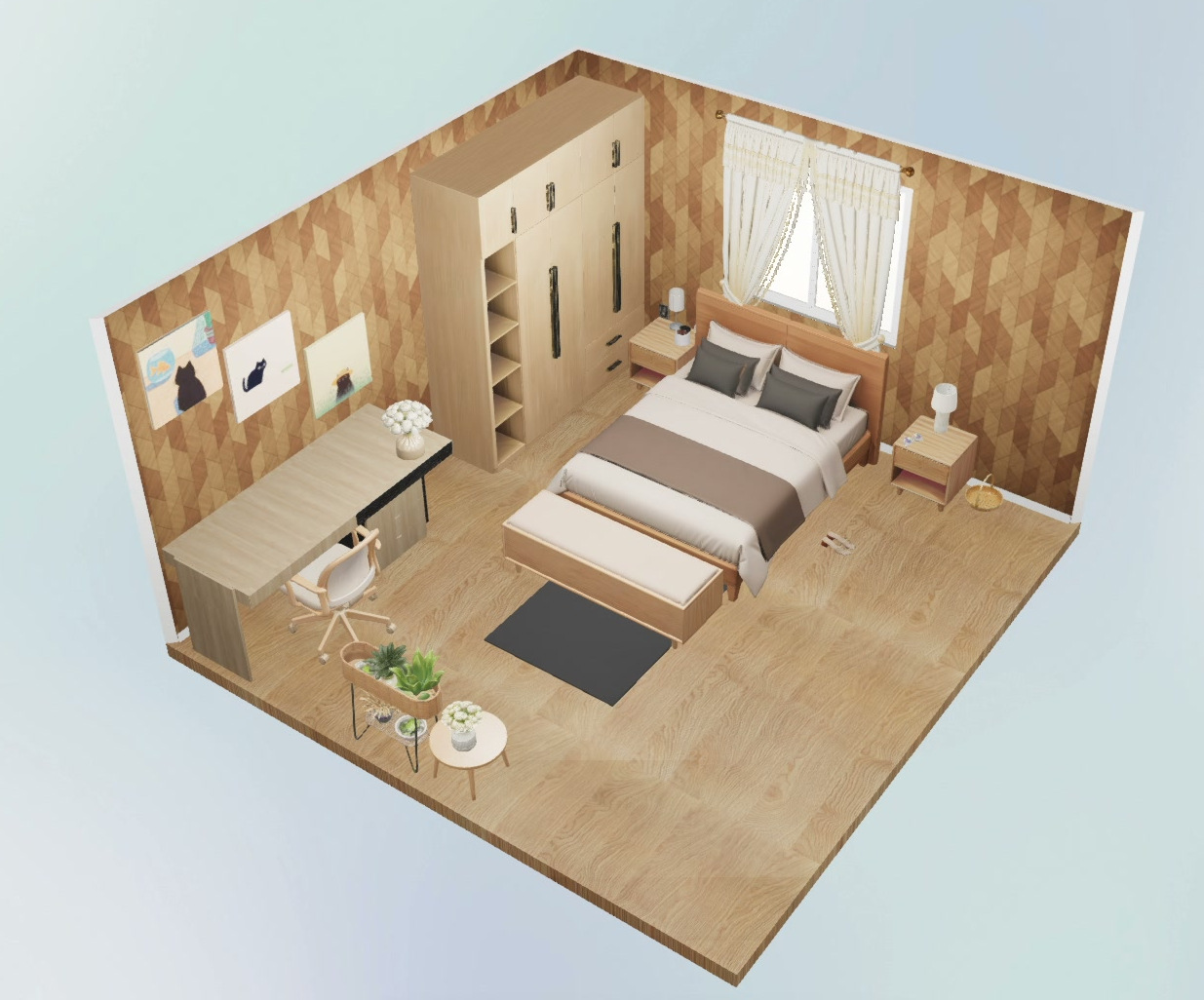
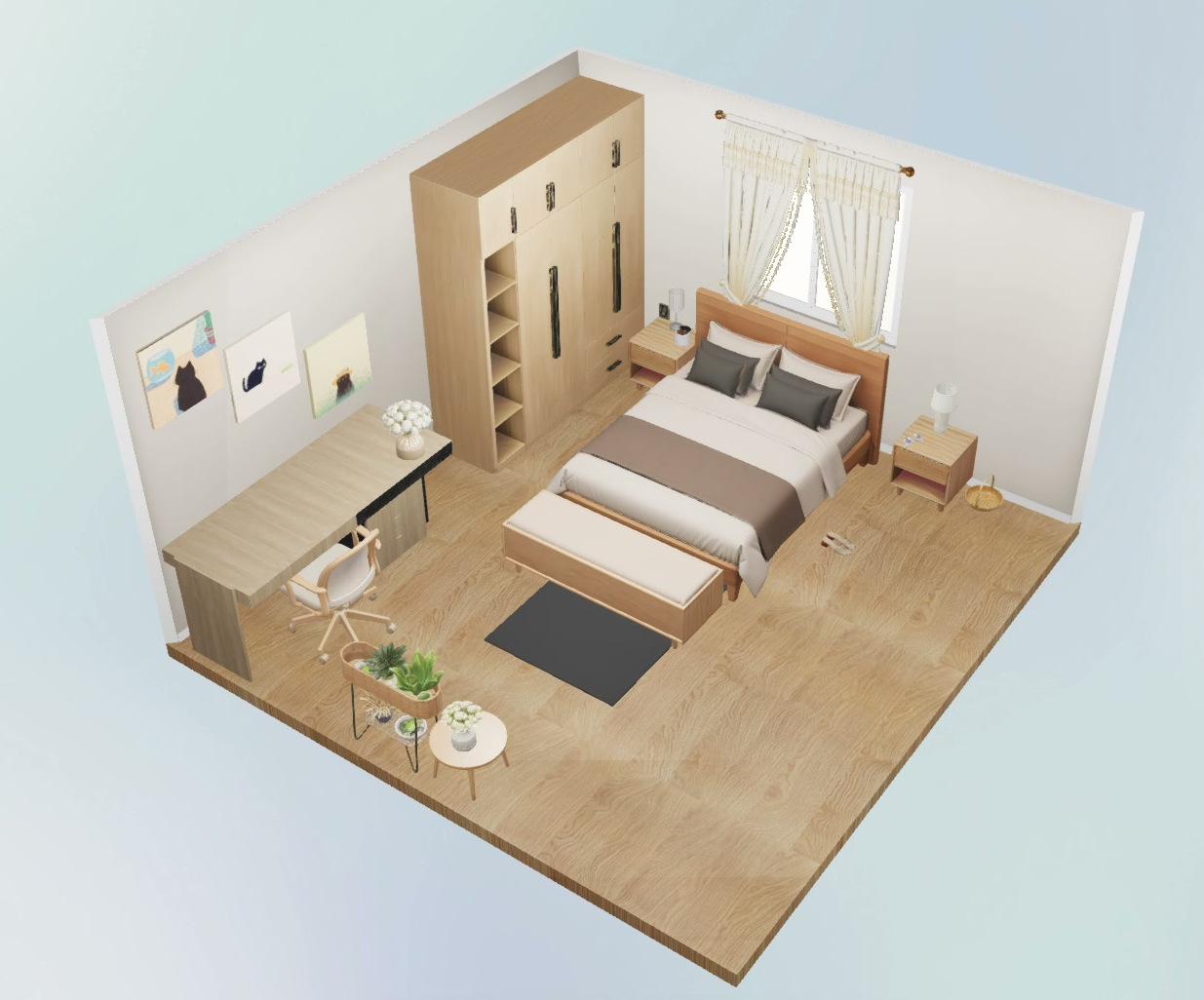
In the two views below, the same SenHOME bedroom changes from a warm geometric wall pattern to a plain light finish. The wood floor, wardrobe, desk, curtains and bedding are in the same positions. In the second preview, the three pictures near the desk stand out more clearly against the quieter wall. You can run the same comparison with bedding or a rug by leaving the wall and the camera view as they are.
4. Test a furniture swap and check it in the room
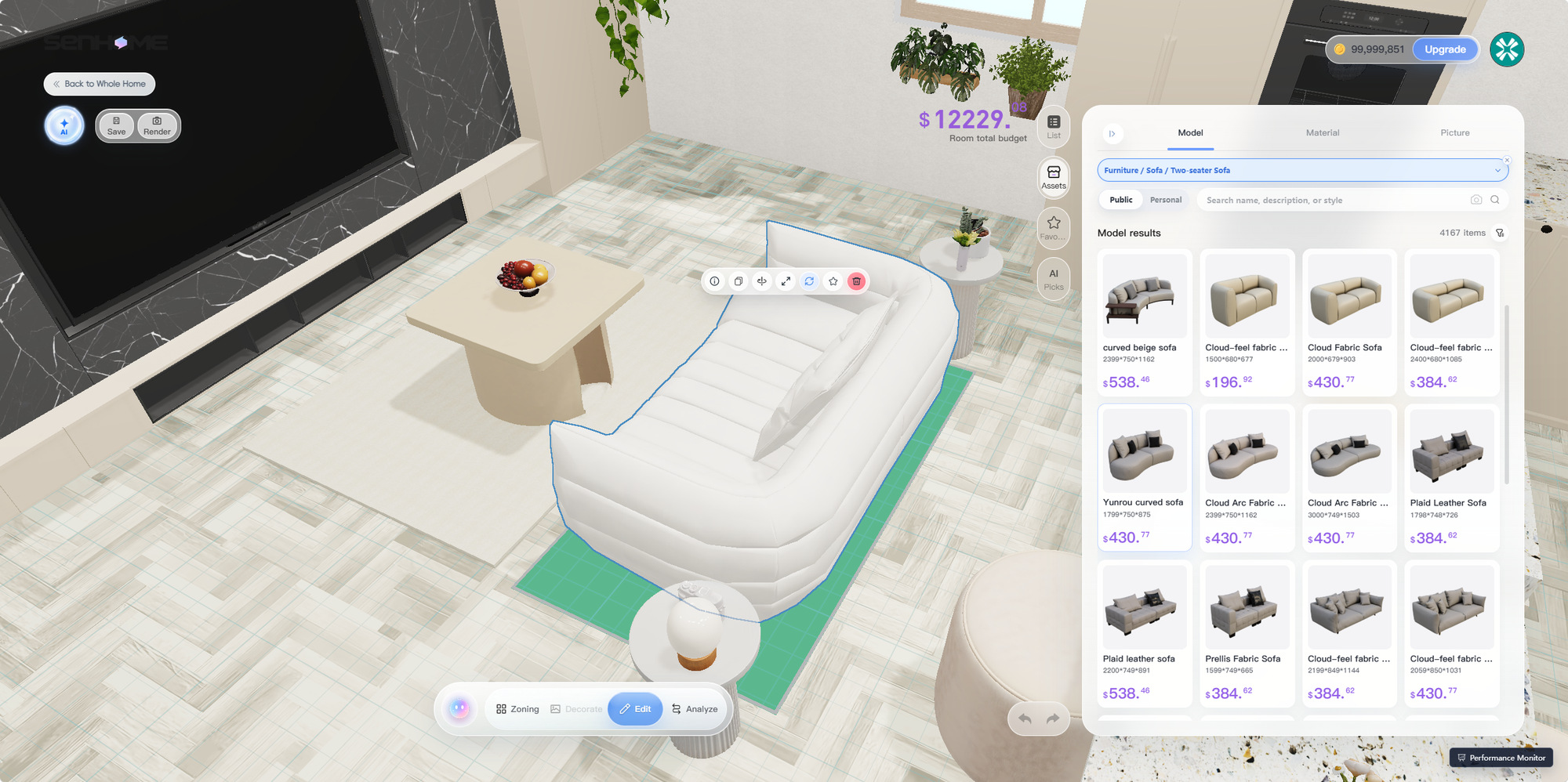
If the finish change looks right, compare a furniture swap separately. In the web editor, select the object and browse Assets → Model. For a sofa, compare overall depth and width as well as shape. A deeper sofa may change the walkway even when its width is similar. Keep one view of the original and one of the replacement from the same spot.
Before ordering, look at a paint or fabric sample in the room in daylight and after dark. Use measured widths and depths for furniture and its delivery path. For the full web workflow from choosing a style to changing a sofa or a wall finish, see the SenHOME interior design walkthrough.