Quick answer
Compare the cash needed for your project window and the Credits available when you will work. List the operations you expect to use, check their displayed charges and add a revision allowance you choose. Then compare subscription payments and top-ups using the current price, issuance schedule and purchase-channel terms.
1. Record the offer and the billing period
At the 2026-11-18 check, SenHOME listed weekly USD 7.99 with 125 Credits weekly, and annual USD 199.99 with 500 Credits monthly. Copy the offer you see from the pricing page into your worksheet. Record the platform, currency, billing interval and issue dates. Count only the Credits that become usable before your planned tasks.
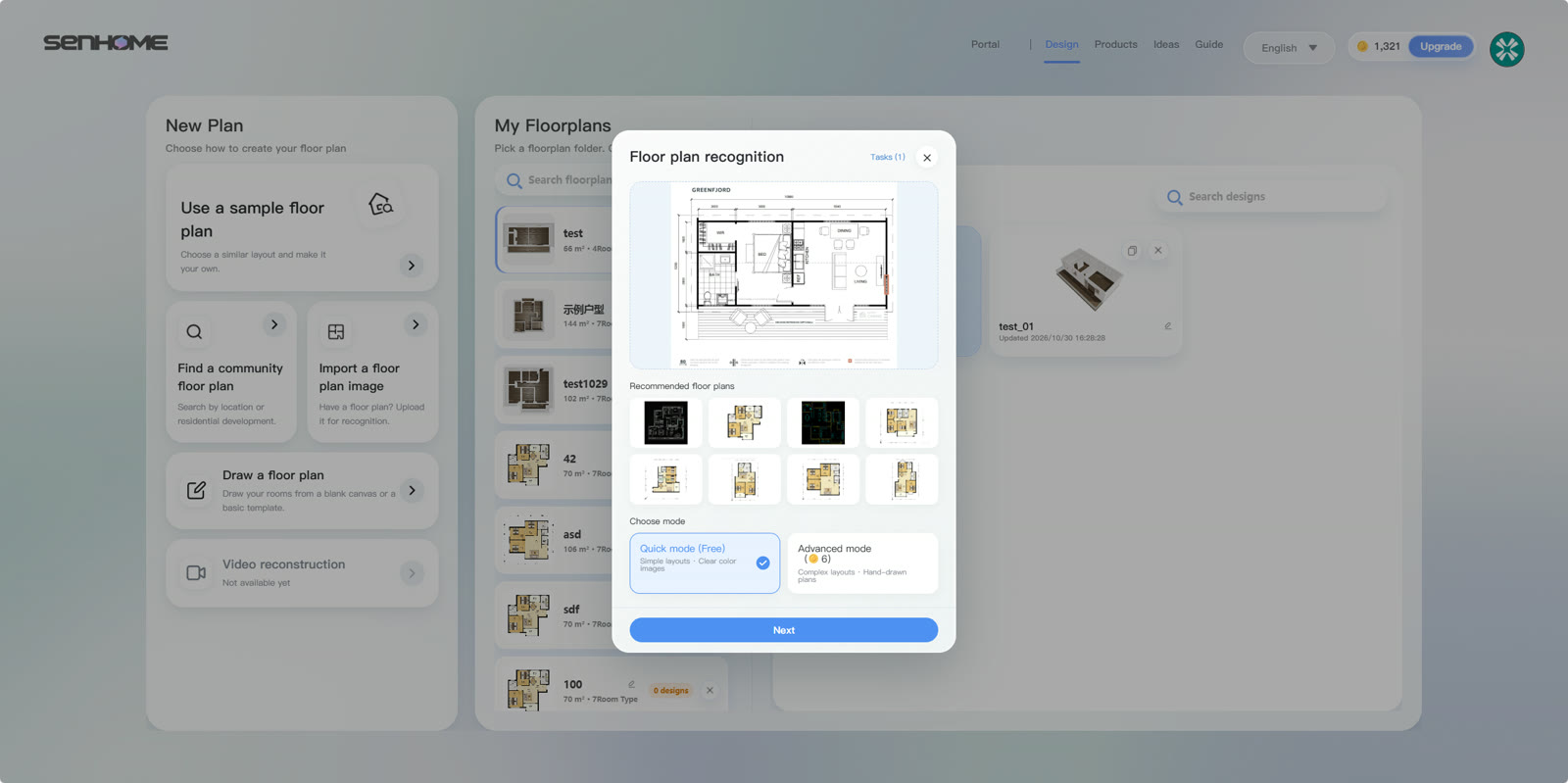
2. Create a worksheet for the project
Write the room, task, expected quantity, displayed Credit charge, planned date and remaining balance in separate columns. Include the variants and revisions you intend to compare. Leave uncertain charges marked for confirmation and update them before you start. Calculate these rows for each purchase option.
- Workload — add each task quantity multiplied by its displayed Credit charge.
- Credit gap — compare that total with the balance usable on the task date.
- Cash outlay — add subscription charges, top-up purchases and the taxes or fees shown at checkout.
3. Confirm consumption before each run
Open your project in SenHOME Web. Check the input, selected mode and output settings before confirming an operation. Read any Credit confirmation and record the balance before and after. Use the actual debit to update your worksheet. If you change the settings or add another variant, recalculate the remaining work before starting again.
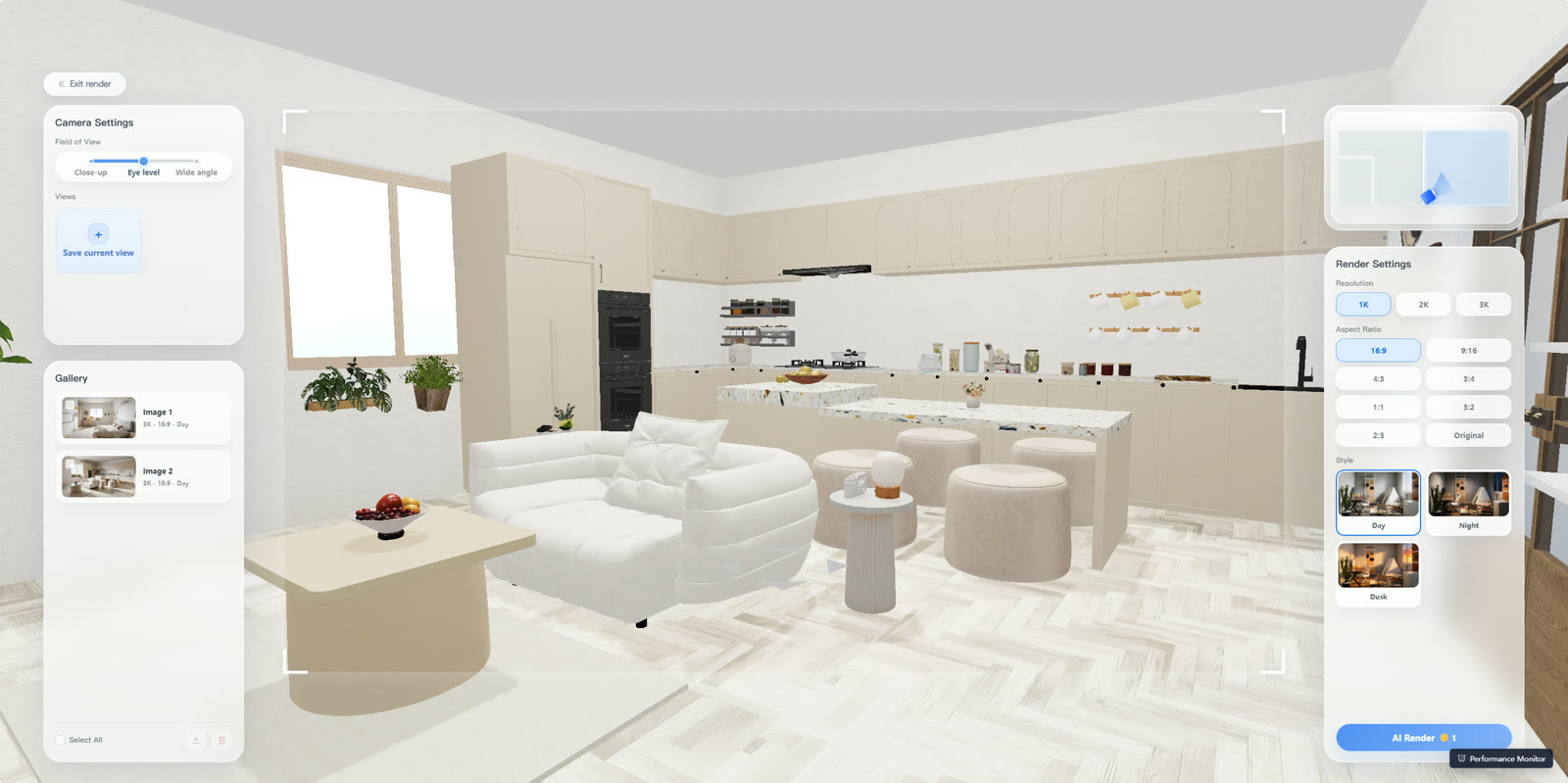
4. Check renewal and close the project record
Read the renewal date, cancellation instructions, Credit validity and refund conditions in the channel where you buy. Note the next payment and the steps required to stop future renewal. Keep the receipt, operation history and final balance together. Compare actual spending with your worksheet after the project, including subscriptions still scheduled to renew.
For preparing the input and comparing designs, use the room-remodel planning guide.