Quick answer
To start designing a room with AI for free, choose a manageable task and check your account access first. SenHOME lists a Free plan with limited features and allowances on its pricing page. Before each generation, check the conditions shown and find out early whether you can save or export the result you need.
1. Prepare a small goal and the room measurements
Choose one question, such as whether a desk fits beside your existing bed. Measure walls, doors, windows and the furniture you want to keep. Note the room needed to open doors and pull back a chair. This gives you a basis for judging an initial design without requesting many versions.
2. Check Free access and available features
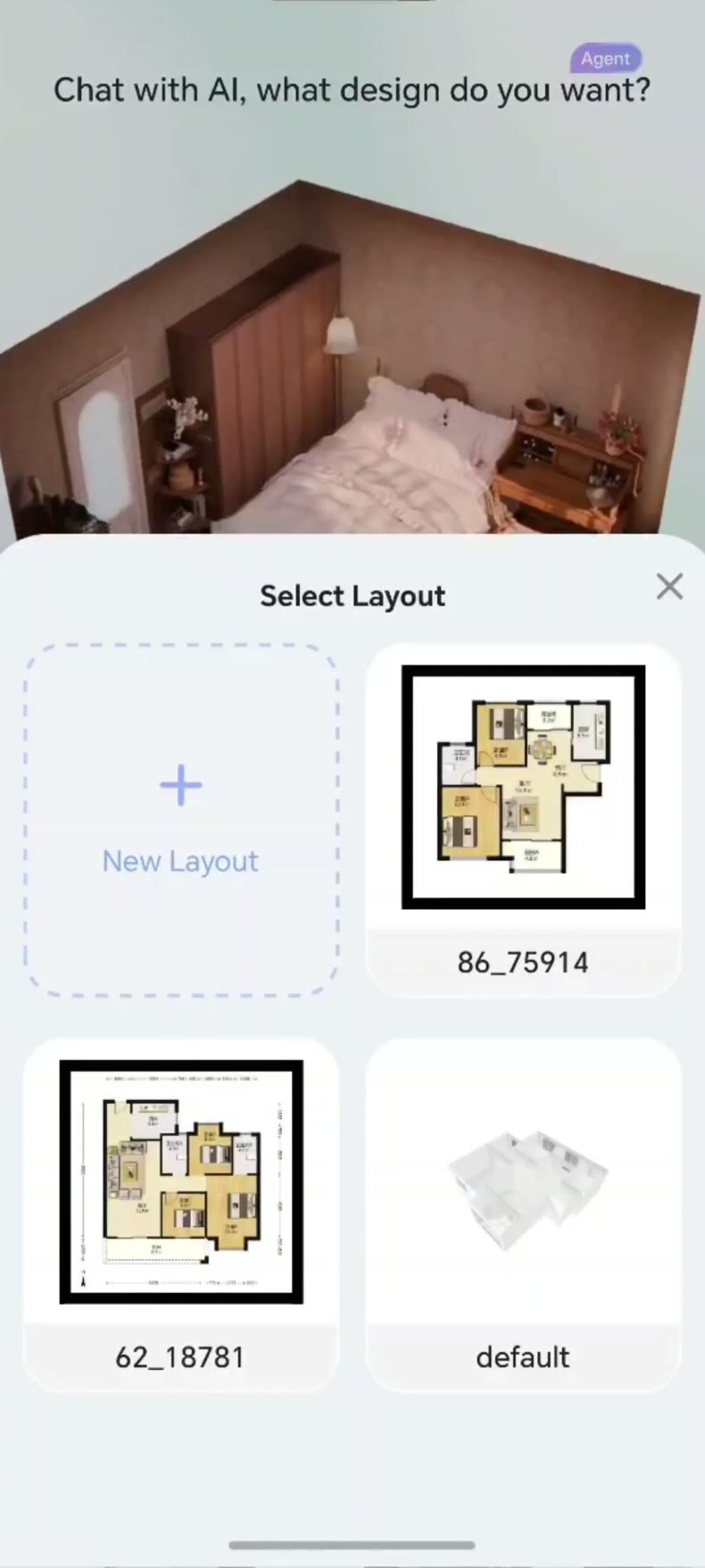
Open the SenHOME pricing page and follow its trial entry. After signing in, check your active plan and available balance. The public Free description includes basic room creation and inspiration search. Image-to-3D and scan-video reconstruction are excluded from that plan. Check access for the particular starting method you want to use.
3. Check usage and payment before each action
Describe your question precisely and start with an available basic feature. Read the usage information or confirmation before starting an action. If a subscription or credit pack is offered, check the amount, currency, billing interval and renewal terms. Then decide whether you want to proceed with the paid step.
4. Test saving and output early
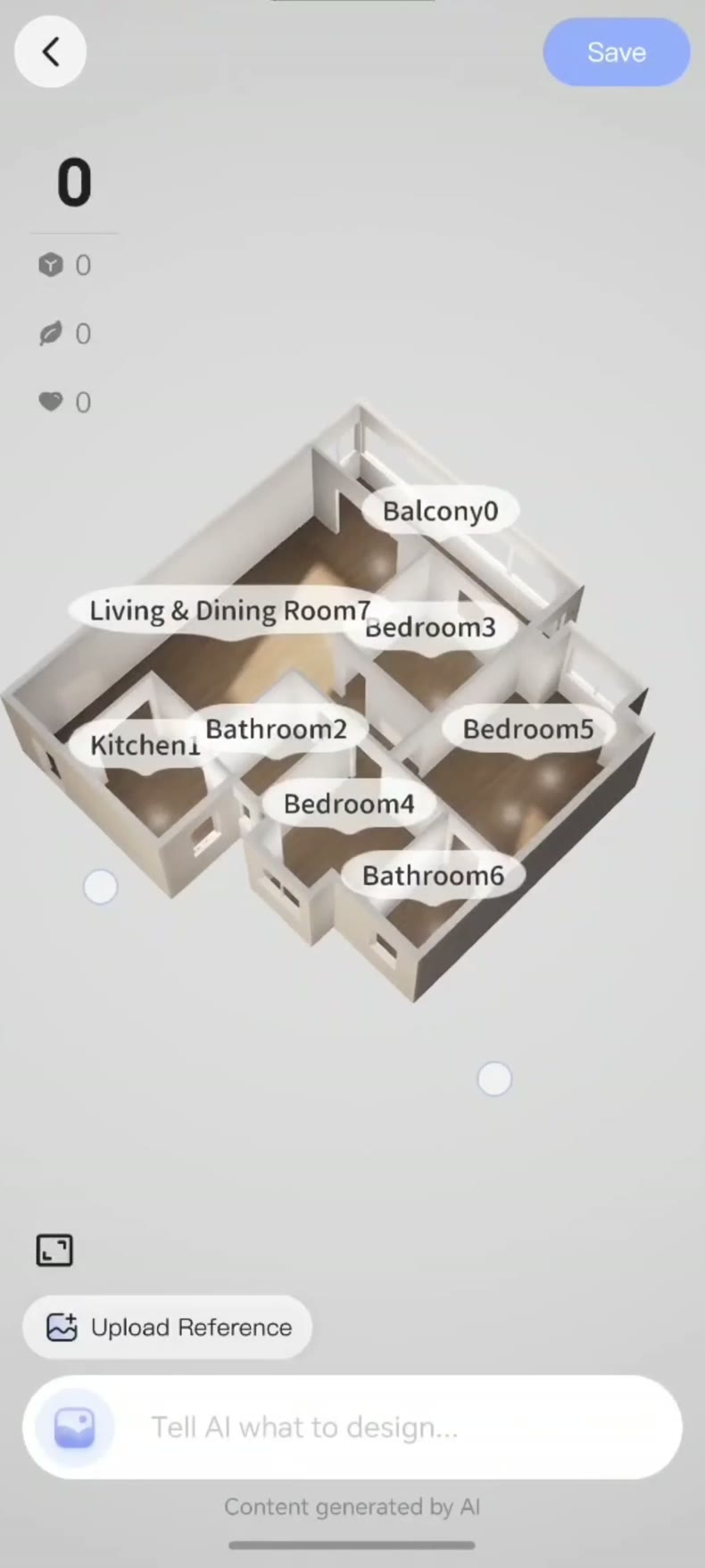
Open the saving, sharing or export option you will need at the end early in the process. Check the file format, resolution, watermark and any plan requirement before creating more designs. Note the terms for your chosen output. Also use a small test project to check whether you can reopen saved work after closing it. The SenHOME App overview explains the product workflow. The guide to comparing room-remodelling options helps you assess one change at a time.