How Do You Turn a Floor Plan into a Furnished Home? Try AI Interior Design with SenHOME
Open SenHOME’s web workspace and try it with your own floor plan.
It is easy to find a style you like when browsing interior design photos. The harder question comes next: would that furniture work in your own home?
Rather than trying to picture it all in your head, you can try your floor plan in a design tool. Here, we will use SenHOME’s web workspace to upload a floor plan, choose a template, furnish the rooms, and adjust the details before producing a rendered image like this.
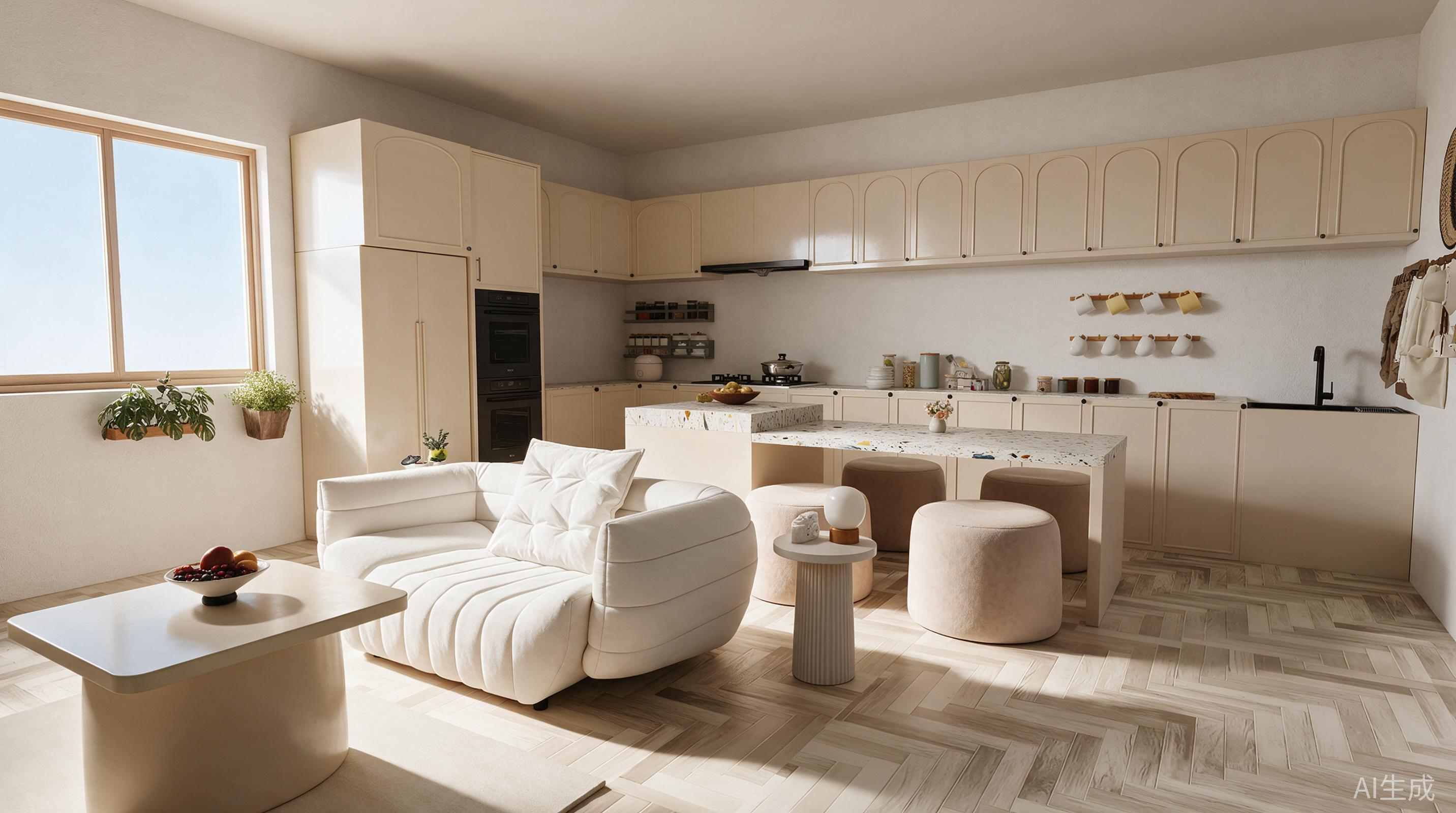
Cream-coloured cabinets, a curved sofa, and pale flooring, seen together from inside the room.
1. Start by adding your own floor plan
Open the Design page and select Import a floor plan image under New Plan.
After uploading, you will see a preview of your plan. Choose Quick mode or Advanced mode based on your image and the descriptions provided, then click Next.
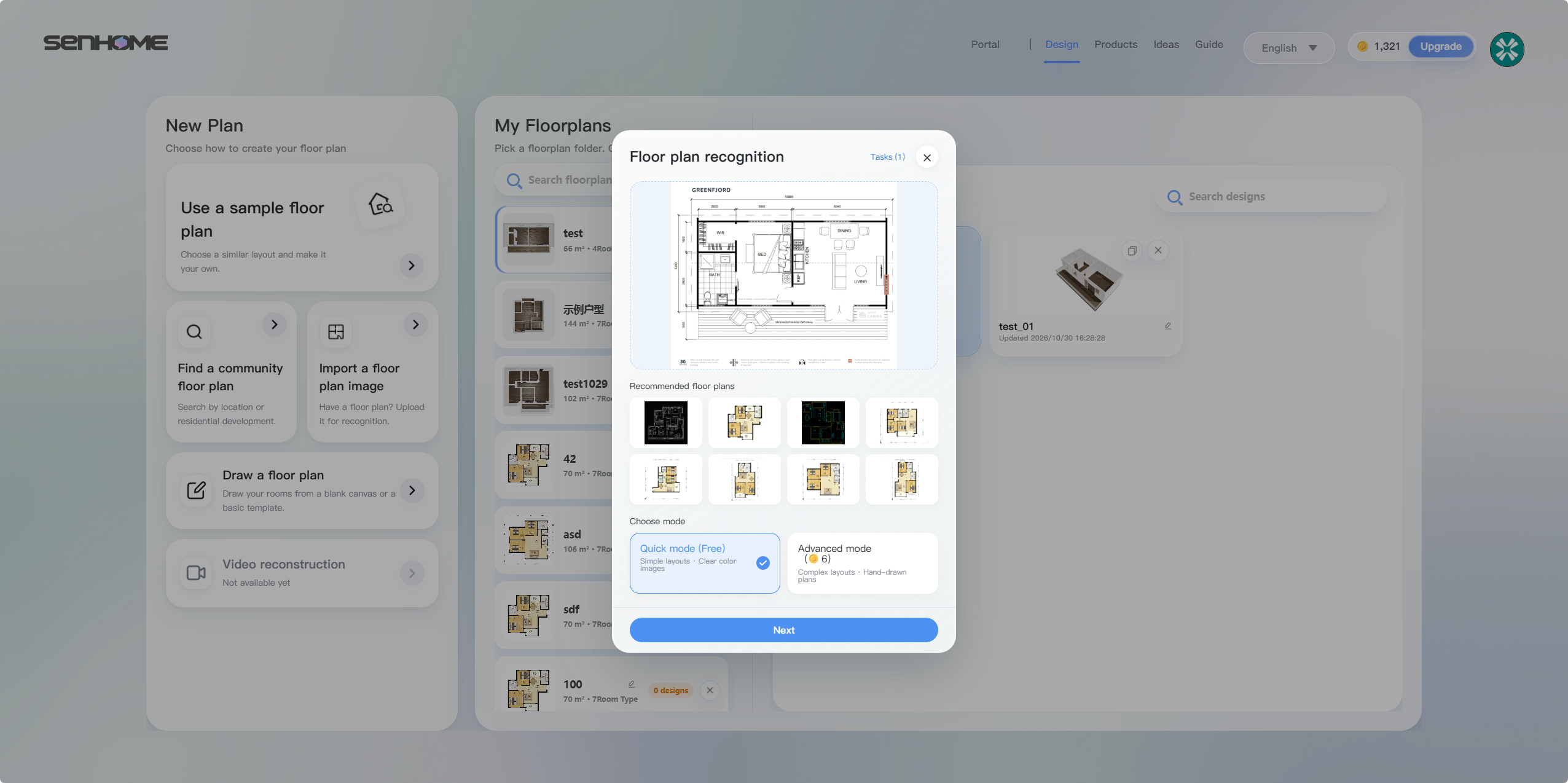
If you do not have a floor plan ready, you can draw one yourself or start with a sample. For this walkthrough, we will continue with an uploaded image.
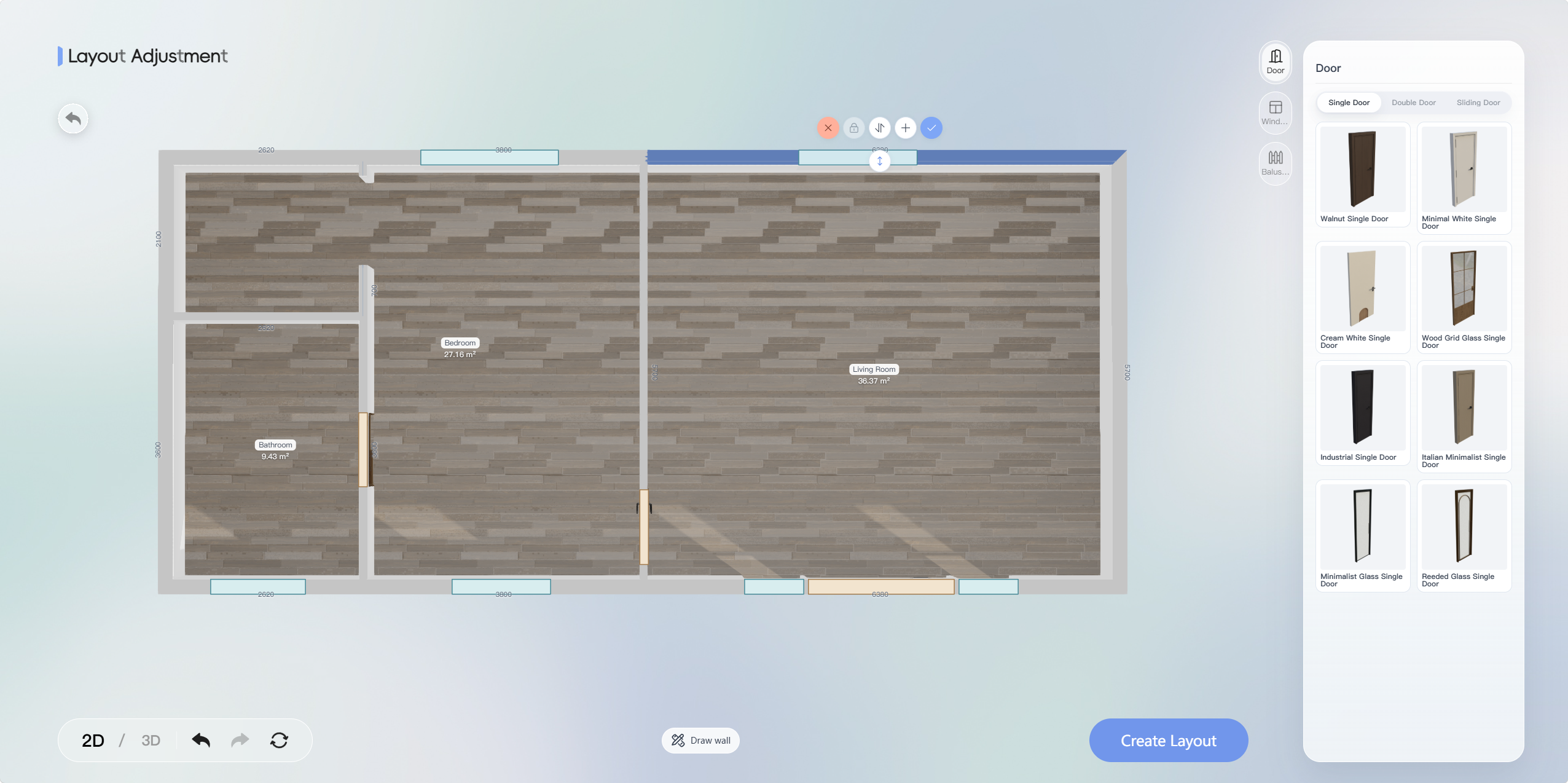
Once recognition is complete, you will enter Layout Adjustment. Take a moment here to compare the walls, doors, windows, and dimensions with your original plan. Pay particular attention to door and window positions, as they will affect where the furniture can go.
You can switch between 2D and 3D views and make adjustments using the wall tools and door and window elements. When you are happy with the plan, click Create Layout.
2. Find a style you would like to live with
In the design workspace, open Inspiration in the Requirements panel.
The template chosen here is Cream tones · French. Its reference images feature soft colours, light furniture, and curved shapes. Below the main preview, you can also explore the combinations used in the bedroom, kitchen, and other spaces.
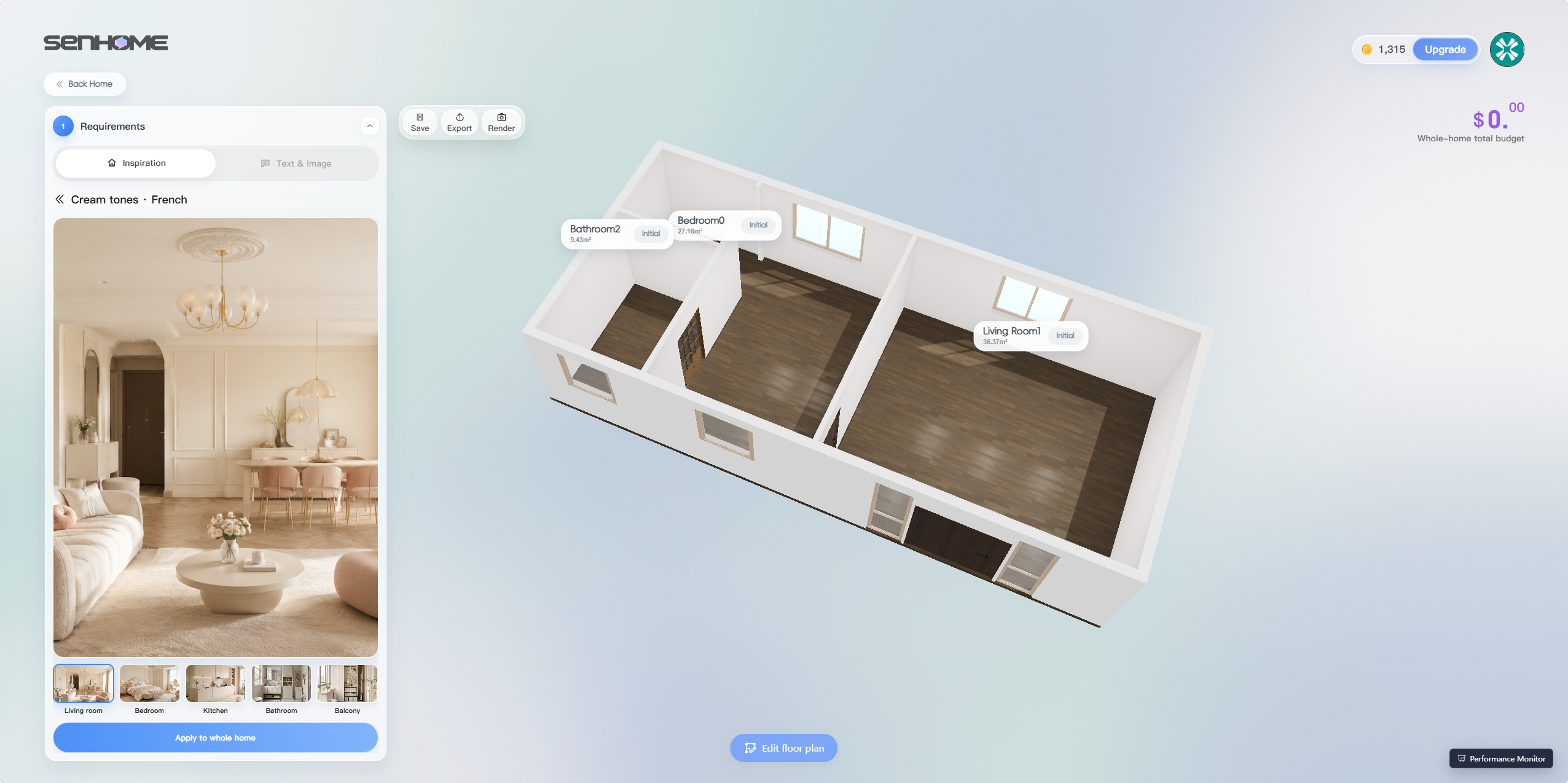
Do not worry about whether the room in the reference is the same size as yours. For now, focus on whether you like the combination of furniture, colours, and materials. AI will use your floor plan when arranging the layout.
Once you have chosen a template, click Apply to whole home to start generating the design.
3. See how AI furnishes your rooms
During generation, the Generation list shows the progress of each room.
When it is finished, your empty floor plan will be furnished. You can look at the whole home first, then open the living room or bedroom for a closer look. The Product List on the right shows the items included in the design.
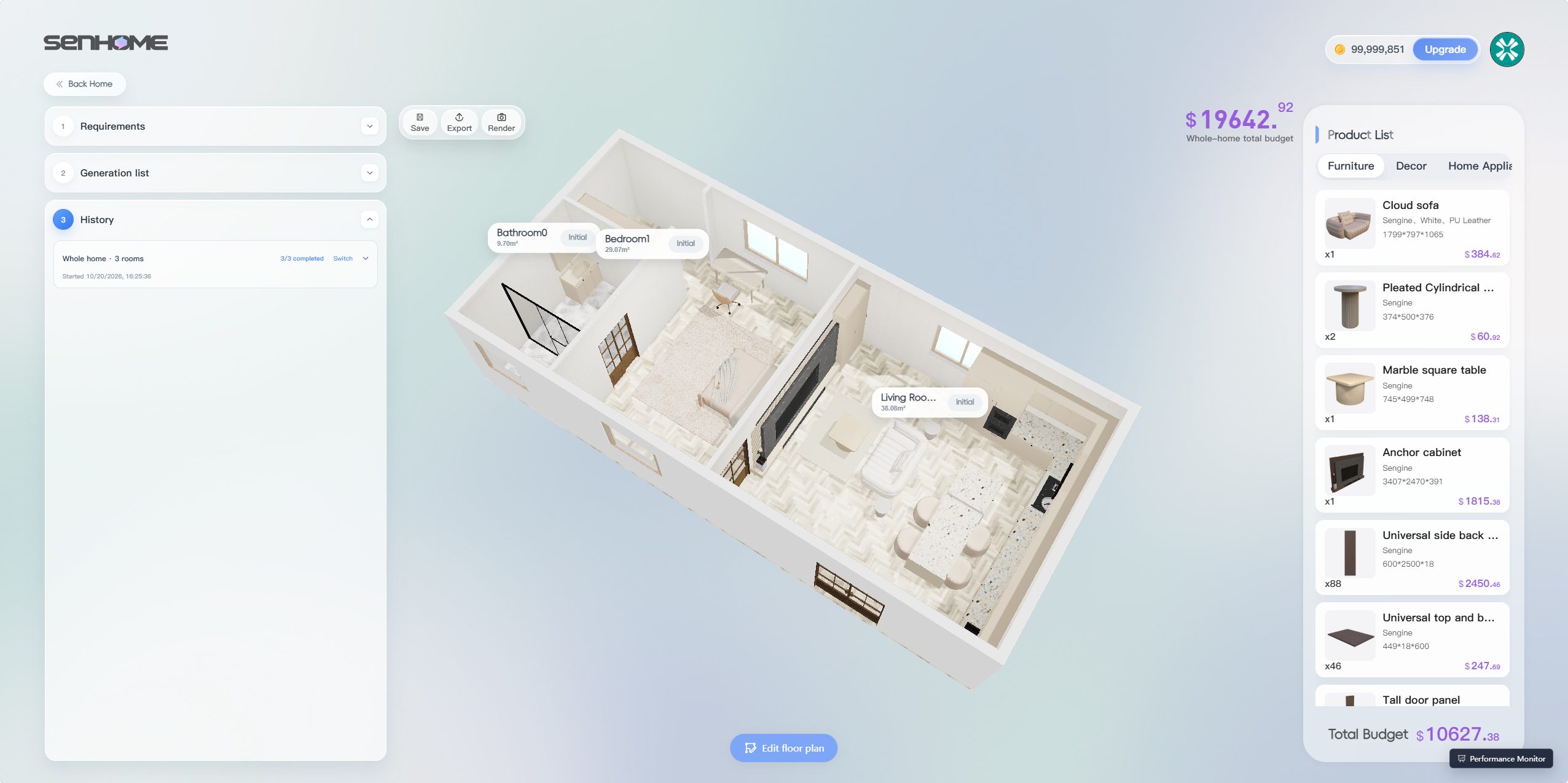
The first version may not be exactly what you want in every detail, and that is fine. It gives you a concrete design to look at, so you can decide what you like and what you would change.
Perhaps you like the overall colour palette but would prefer a different sofa. Or you want to keep a desk in the bedroom but reconsider its position. Those are the details you can work on next.
4. Change the parts that do not feel right
Open the model library to change furniture
Open a room, choose Edit, and select the furniture you want to change. Then open Assets → Model on the right.
In the screenshot below, the living-room sofa is selected. The model library shows alternative designs and their dimensions.
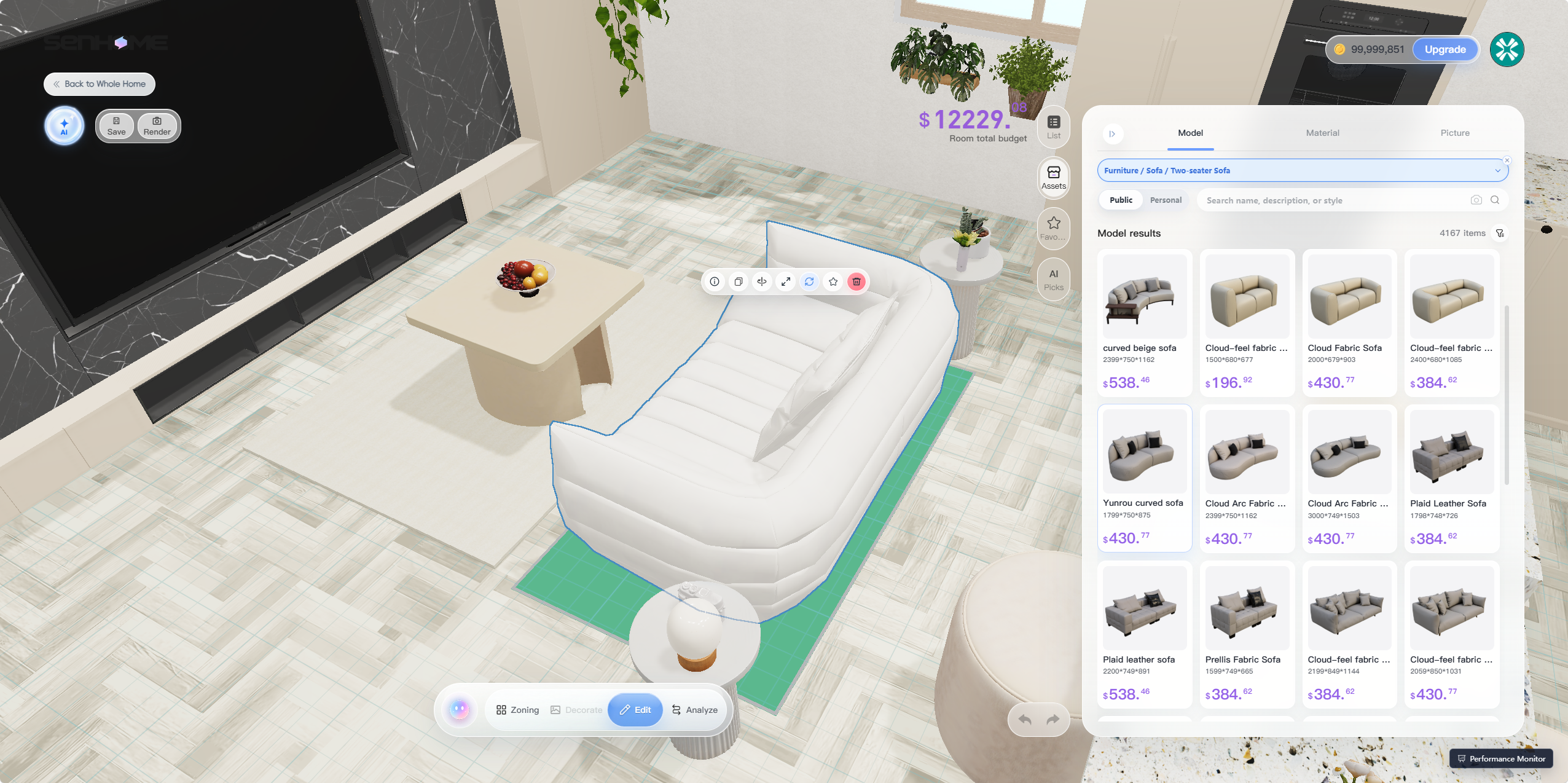
As you browse, check the dimensions as well as the shape. It is easier to judge whether a sofa works with the coffee table and nearby cabinets when you see it in the room.
If you are happy with the furniture and only want to change the walls or flooring, switch to Material. Here you will find Floor, Wall, and Ceiling categories.
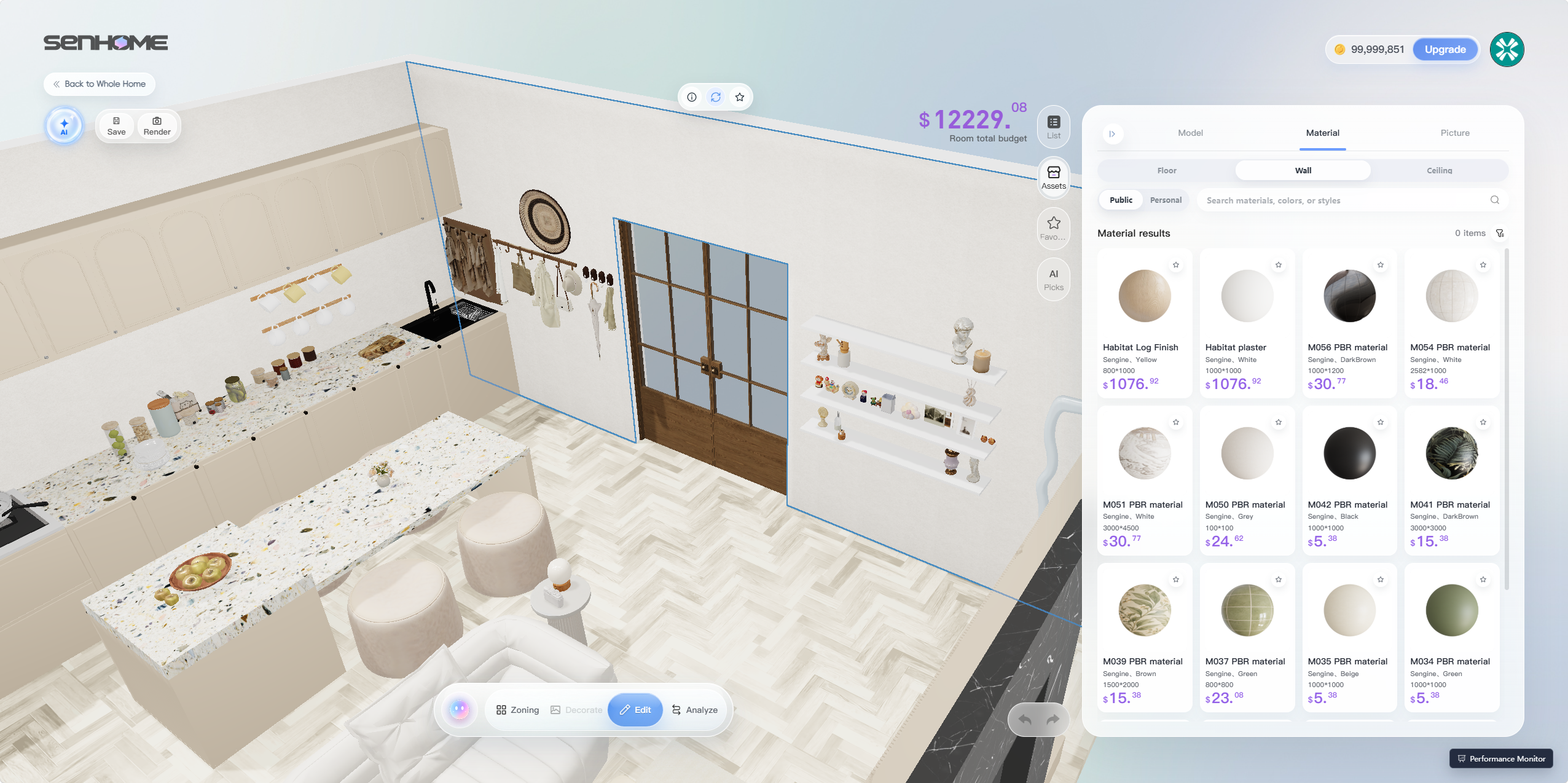
Try changing one wall first and see how the room feels before deciding whether to replace other materials. You do not need to change everything at once.
If you are not sure what to change, explain your needs to AI
Sometimes you know what you need but have not worked out the arrangement. A bedroom, for example, might also need a place to work.
Open the AI Agent and describe how you want to use the room and which furniture you would like to keep. For example:
“This bedroom also needs to work as a home office. I want to keep the bed and desk. Help me explore how the layout could be adjusted.”
This is an example of how to describe your needs. After submitting a request, review the Agent’s response and changes to the model, then explain any further adjustments you want.
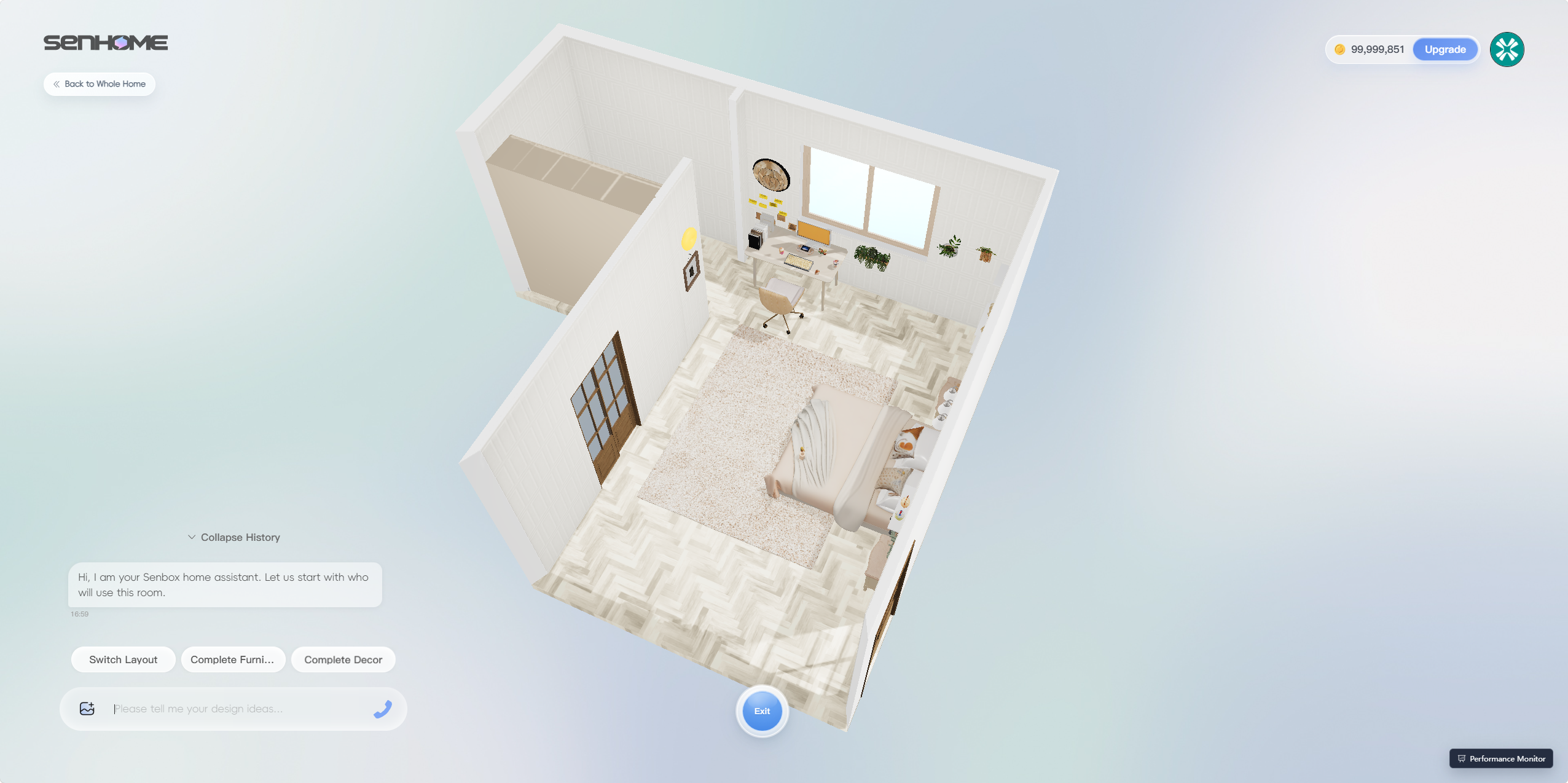
If you have already picked a specific design, choosing it directly from the model library is more straightforward. If you are still considering the layout, start by explaining what you need.
5. See the result from inside the room
The overhead model makes the furniture arrangement easy to see. But you may still be wondering: how will those colours and materials feel together when you are standing in the living room?
Click Render to prepare an image from an interior viewpoint.
First, adjust the field of view in Camera Settings. Include both the living room and kitchen if you want to see how they work together, or choose a closer view to look at a particular combination. Use Save current view to keep a composition you like.
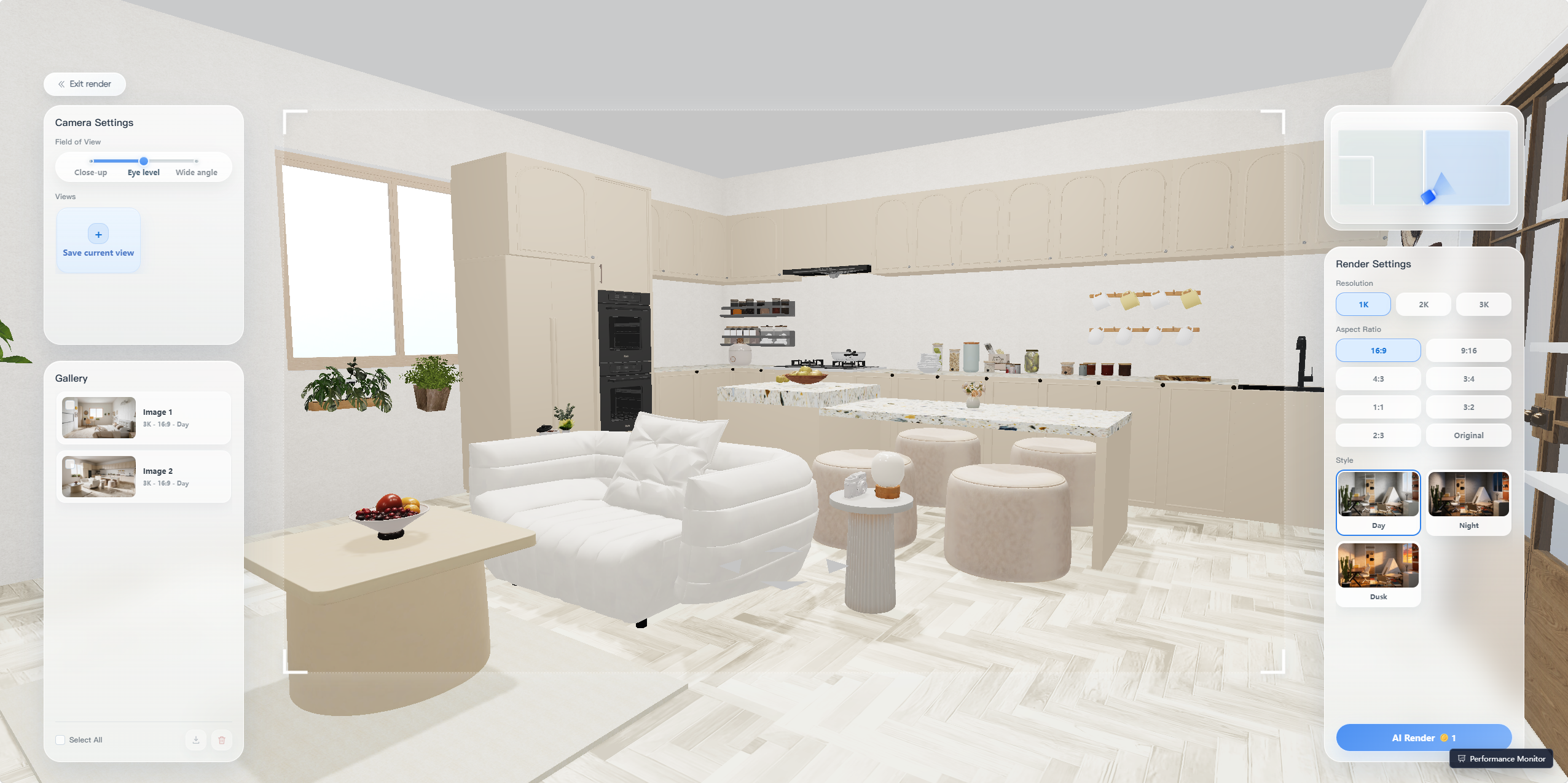
In Render Settings on the right, you can choose the resolution, aspect ratio, and Day, Night, or Dusk style. The screenshot shows 1K, 2K, and 3K resolution options, with aspect ratios including 16:9, 9:16, and 1:1.
Once you have chosen your settings, check the credit cost shown in the interface, then click AI Render.
The bedroom render below makes it easier to see how the bed, the desk beneath the window, and the wall decorations work together.
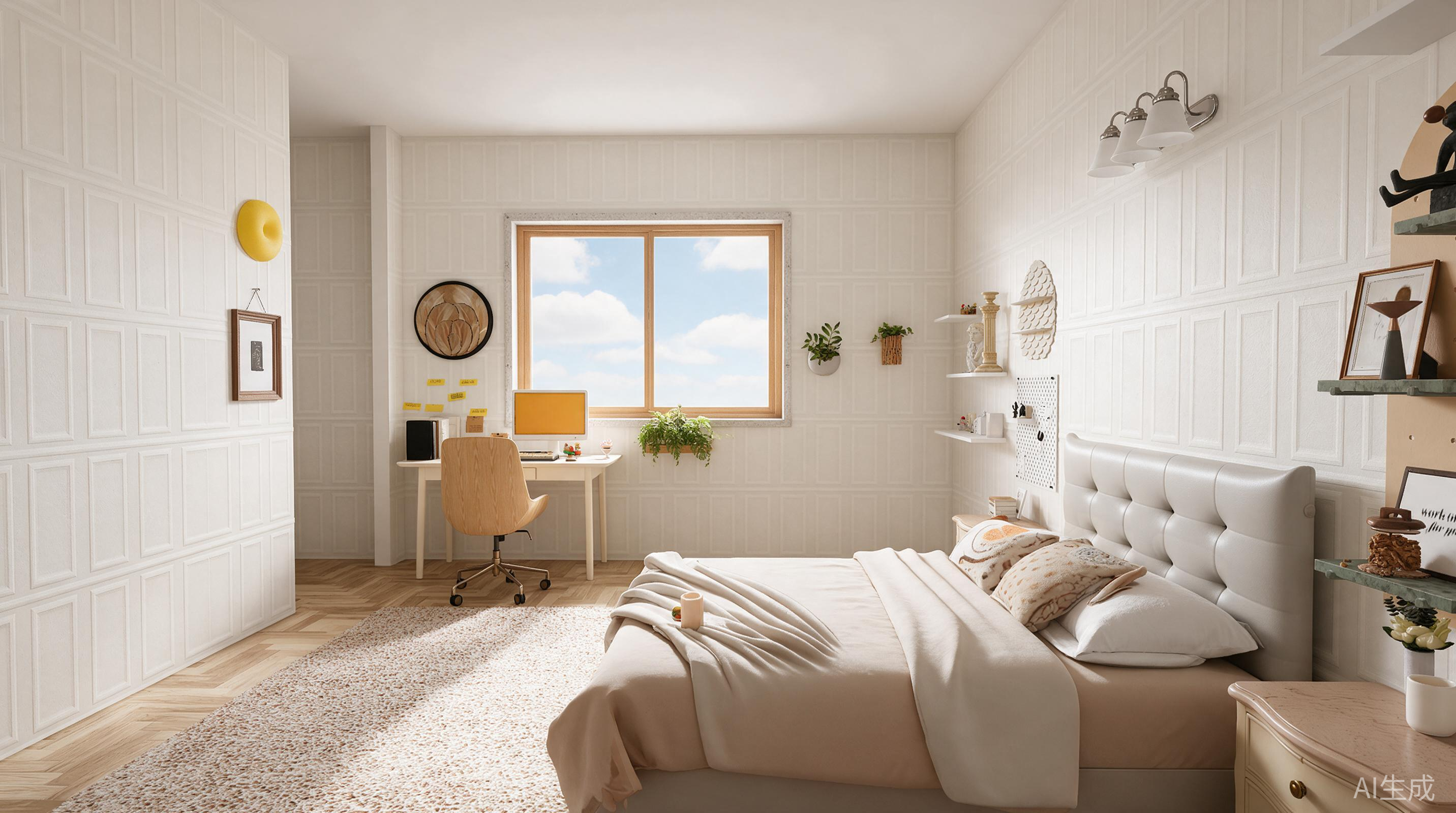
If there are still parts you do not like, return to the editor and keep adjusting. When you are ready to buy furniture, check the room and product dimensions again. A piece should not only look right; it needs to fit and work comfortably in everyday use.
Questions you may still have
Can I use an inspiration template if its room is different from mine?
Yes. The template provides a furniture combination and style direction, while AI uses the floor plan you created to arrange the layout. The two rooms do not need to have exactly the same shape.
After generation, pay particular attention to furniture near doors and windows, walking space, and furniture dimensions. Liking a style does not mean every piece will suit your room. You can continue replacing and adjusting items.
Will errors in floor-plan recognition affect the design?
Yes. The furniture arrangement is based on the floor plan you create. If the walls, doors, windows, or dimensions are incorrect, you will not have a reliable basis for judging whether the furniture fits.
After recognition, compare the result with the original plan and make corrections in Layout Adjustment before generating the design. For actual purchases, use on-site measurements.
Should I edit the design myself or use the AI Agent?
It depends on how clear you are about the change you want.
If you already know you want to replace a sofa or try a different wall material, use the model or material library directly. If the question is how to arrange a bedroom that also needs to work as an office, start by describing your needs to the AI Agent.
Explain what you want to keep, then check the result so that parts you were already happy with are not changed along the way.
You do not have to decide on every material and piece of furniture at the start. Add your floor plan and choose a direction you like. With a first version in front of you, it becomes easier to see what you really want to keep and what you want to change.
SenHOME is also available as an app
Alongside the web workspace, SenHOME also offers an app. Visit the SenHOME App page to learn more and find download options.